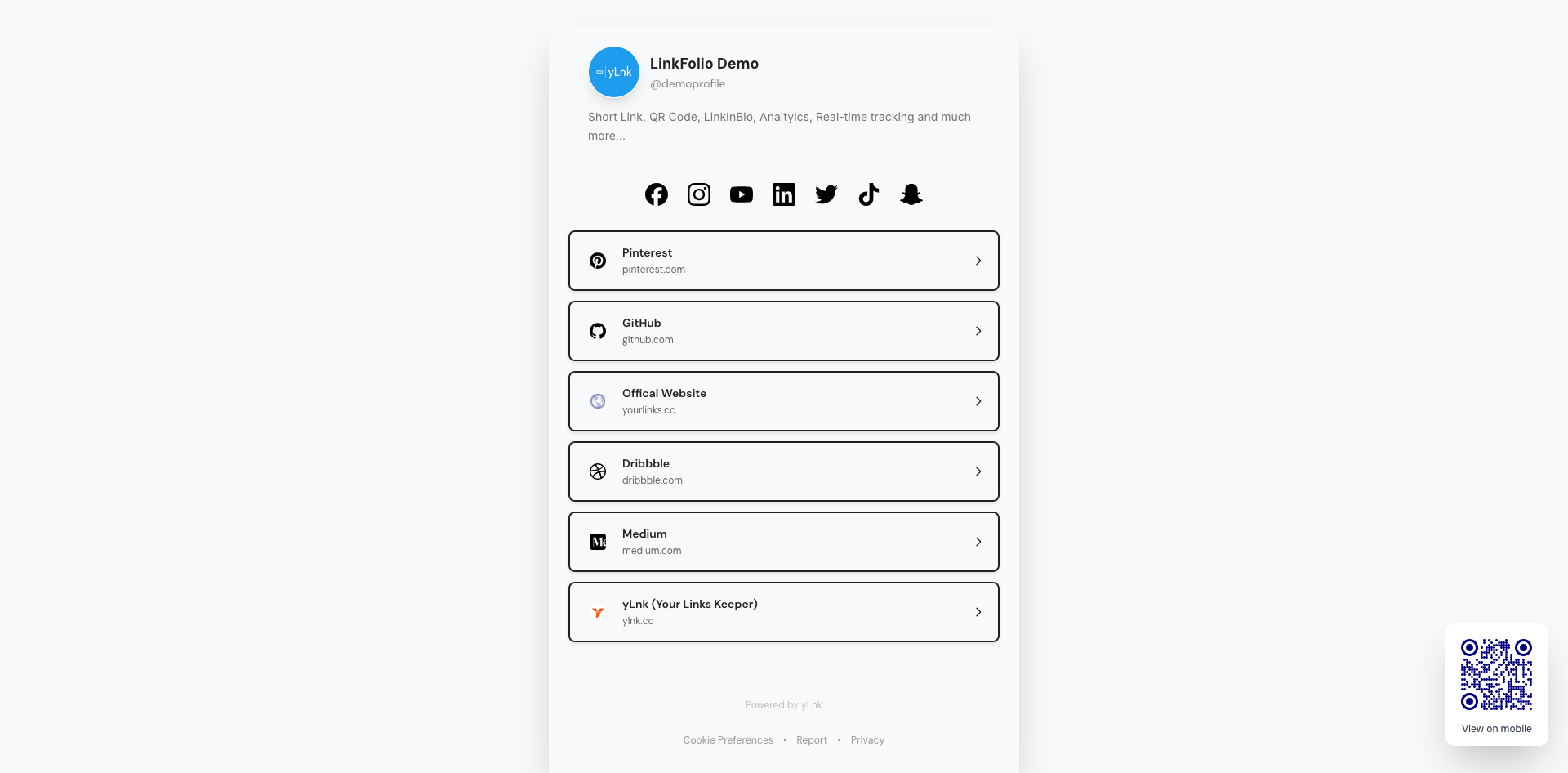
What This Feature Does
LinkFolio is the yLnk profile landing page for collecting multiple links under one public profile. A profile can show identity details, images, a description, short-link-backed buttons, theme styling, custom visual settings, and QR configuration.
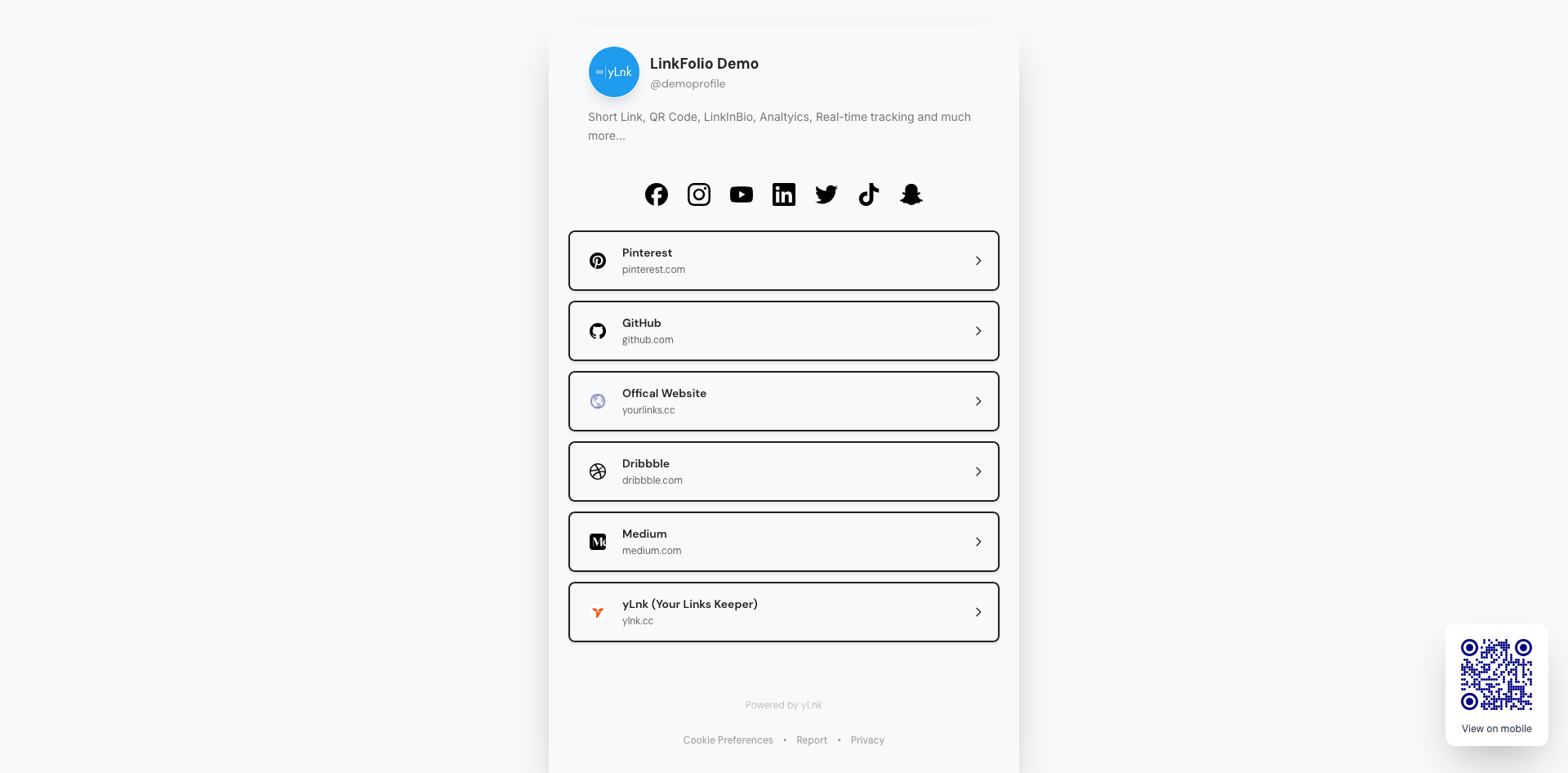
Public profiles use the username route by default:
https://ylnk.cc/@demoprofile
When a branded custom domain is attached, the same LinkFolio can render at the domain root:
https://links.yourbrand.com/
Who It Is For
- Creators who need a public profile with multiple links.
- Teams that want a branded landing page for campaigns, support, or community links.
- Marketers who want short-link-backed buttons with analytics.
- Organizations that need a profile on a custom domain.
Before You Start
Required Access
You need access to the yLnk account or organization that owns the LinkFolio profile. Creating and editing organization profiles requires editor-level access in the active organization context.
Profile Requirements
- Username must be unique.
- Username must be 3 to 30 characters.
- Username can contain letters, numbers, and underscores.
- Full name is required.
- Description can be up to 1000 characters.
- Public profiles must be active to render.
Link Requirements
LinkFolio links are backed by existing yLnk short links. When you add a link, the backend looks up the short link id and stores the title, original URL, short URL, position, active state, pinned state, and embedded-preview flag.
The implementation allows up to 50 links per profile.
Plan Gating
Basic profile and link management are the core LinkFolio workflow. Advanced visual controls require the LinkFolio advanceEdit capability:
- Theme selection
- Header customization
- Wallpaper customization
- Text settings
- Button settings
- Color settings
- QR customization
If the plan does not include advanced editing, these actions return an upgrade-required error.
Branded Domain Requirements
To use a branded domain for LinkFolio:
- The custom domain must already be registered.
- The domain must be
ACTIVE. - The domain must belong to the same user or organization context.
- The domain must not already be attached to yShop.
- The domain must not already be attached to another LinkFolio.
Step-by-Step
Create A Profile
🧭 1. Navigate: App > LinkFolio. 2. Click Create. 3. Enter a username, full name, and optional contact details. 4. Save the profile.
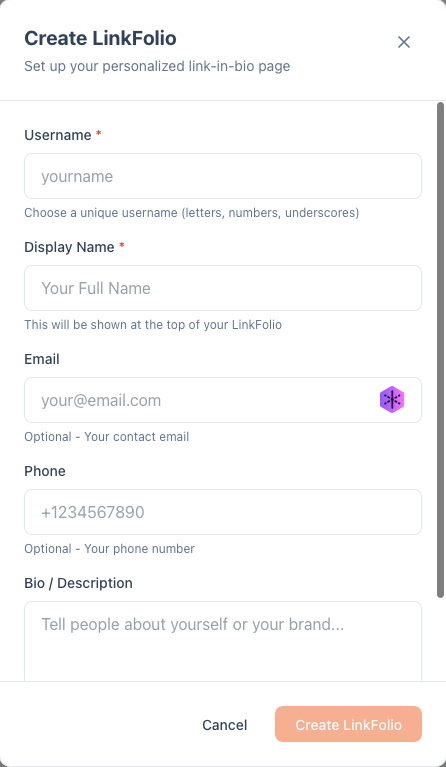
The profile is created active by default. Its public username is lowercased before storage.
Update Basic Info
- Open the profile editor.
- Update full name, email, phone, description, profile image, or background image.
- Save the basic info.
Images are handled through the storage layer. Existing images can be kept, replaced, or removed depending on the editor input.
Add Links
- Open the Links section.
- Search for an existing short link.
- Add the short link to the LinkFolio.
- Set the position.
- Save the profile.
When a link is added directly, yLnk uses the short-link title or SEO title as the button title. If neither exists, it uses My Link.
Organize Links
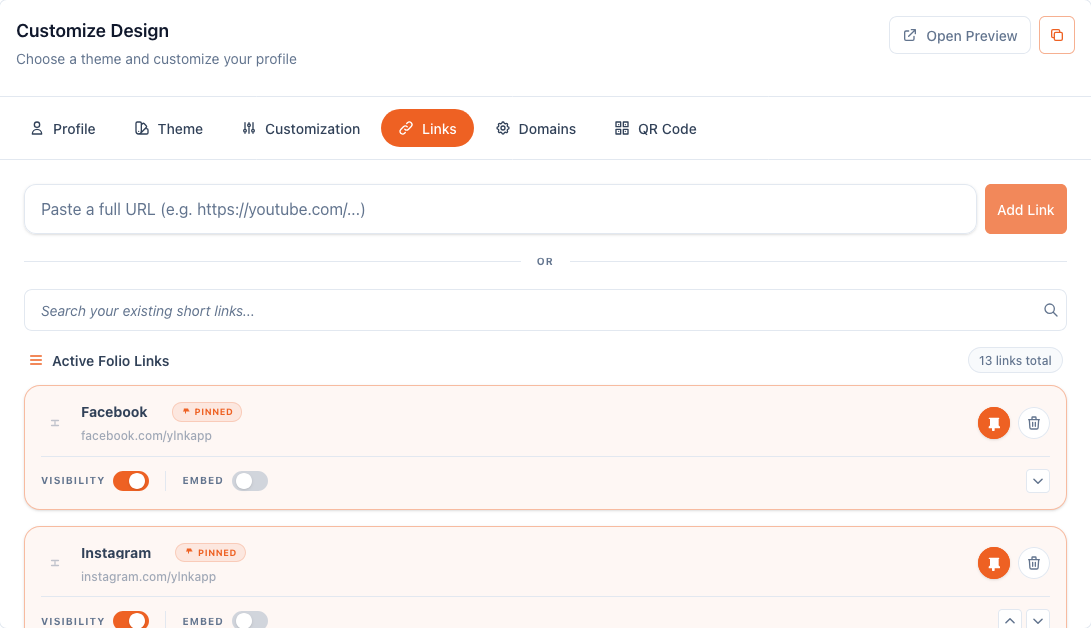
Use the Links section to:
- Edit link titles.
- Remove links.
- Reorder links.
- Mark links active or inactive.
- Pin important links.
- Enable or disable embedded previews.
If autoArrangeSocialMedia is enabled, common social links such as Facebook, Instagram, X, LinkedIn, YouTube, GitHub, TikTok, Pinterest, Snapchat, Reddit, Twitch, Discord, and Telegram are moved before other links.
Choose A Theme
- Open the Theme section.
- Choose a predefined theme.
- Save the theme.
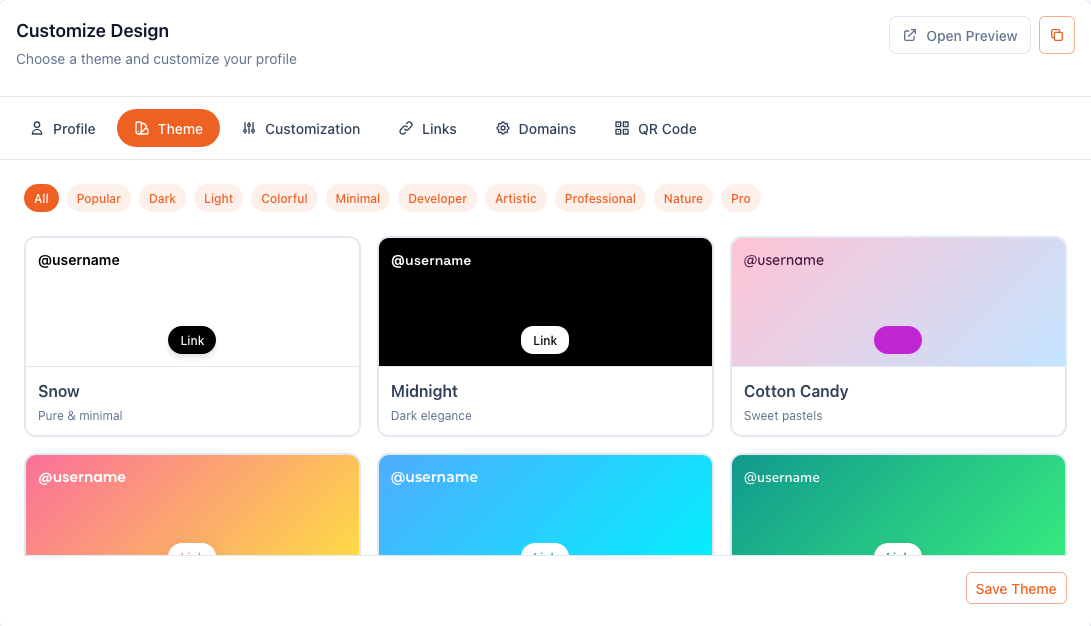
When custom mode is off and a theme is selected, yLnk applies the theme configuration to layout, fonts, wallpaper, title size, colors, button style, and pinned icon color.
Customize Design
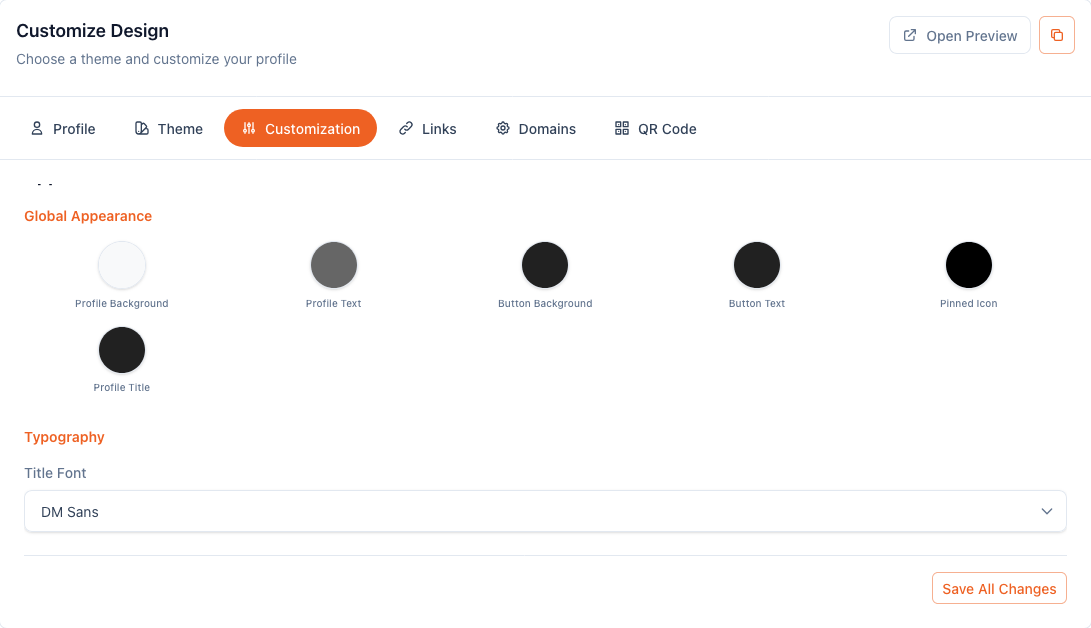
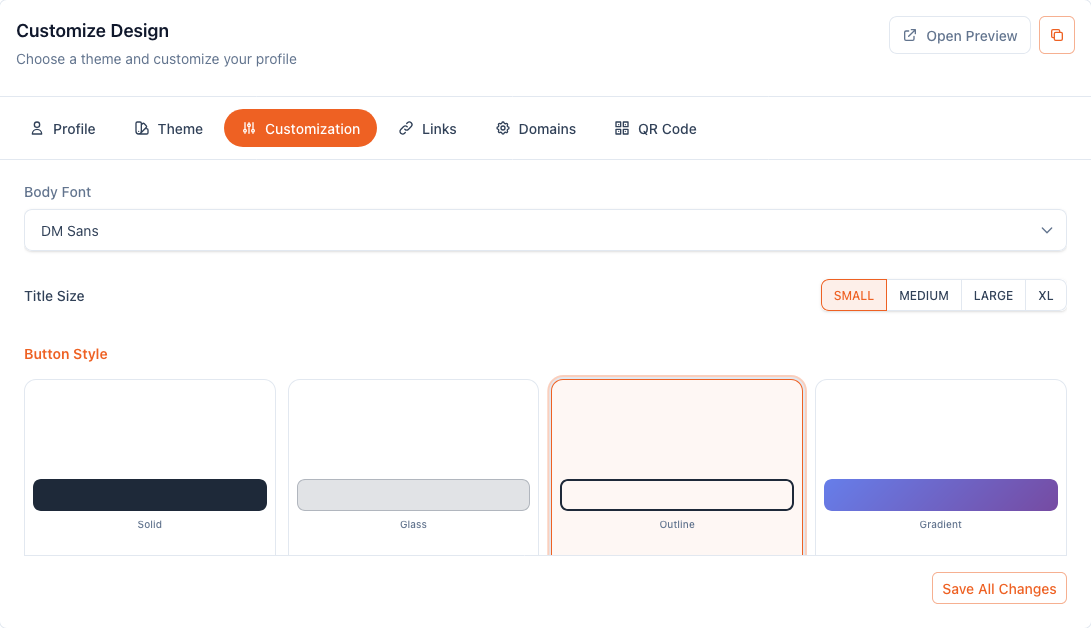
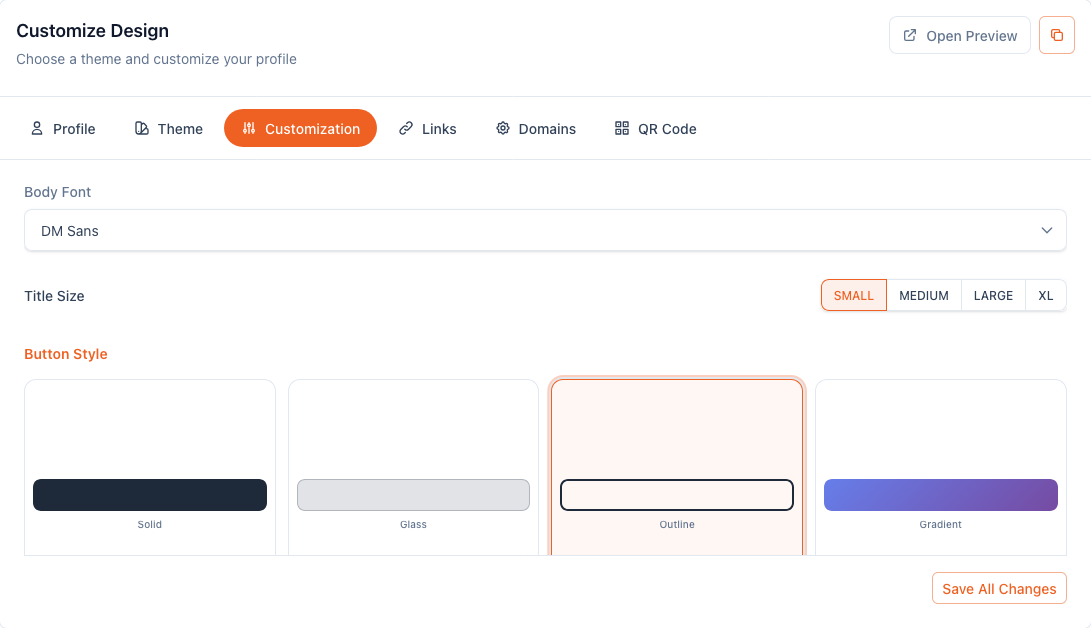
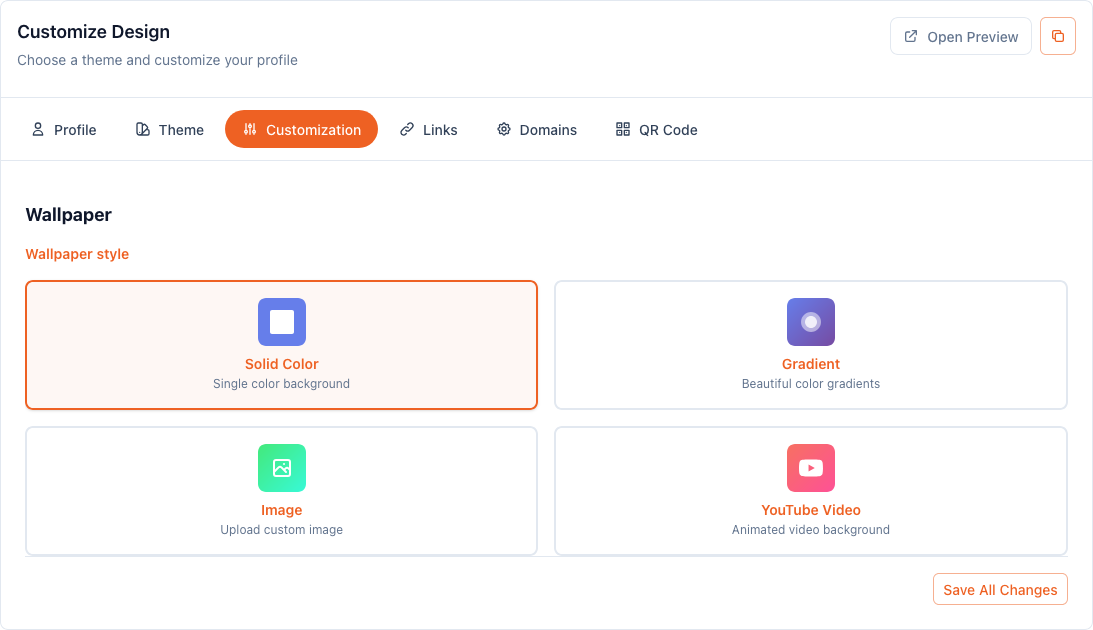
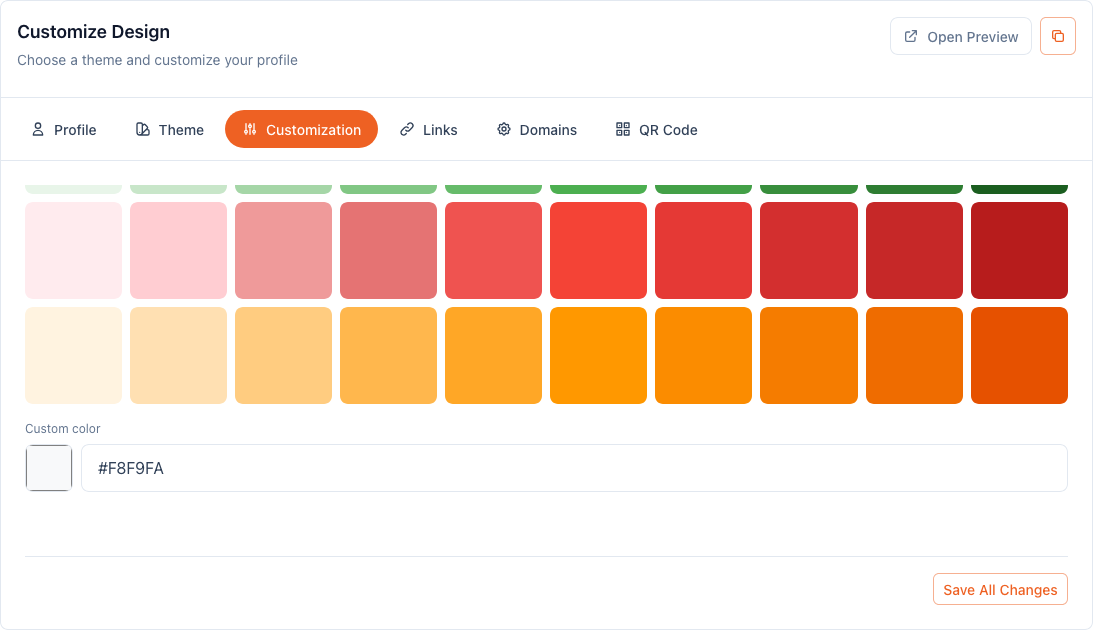
Use the advanced customization sections to edit:
- Header layout:
classic,hero,minimal,card, orcover - Title and description fonts
- Cover image
- Wallpaper style:
fill,gradient,image, orvideo - Title size:
small,medium,large, orxl - Page and title colors
- Button fill, corners, shadow, color, and text color
⚠️ Gradient wallpaper requires both from and to colors. Color values must be valid hex colors where validation is enforced. 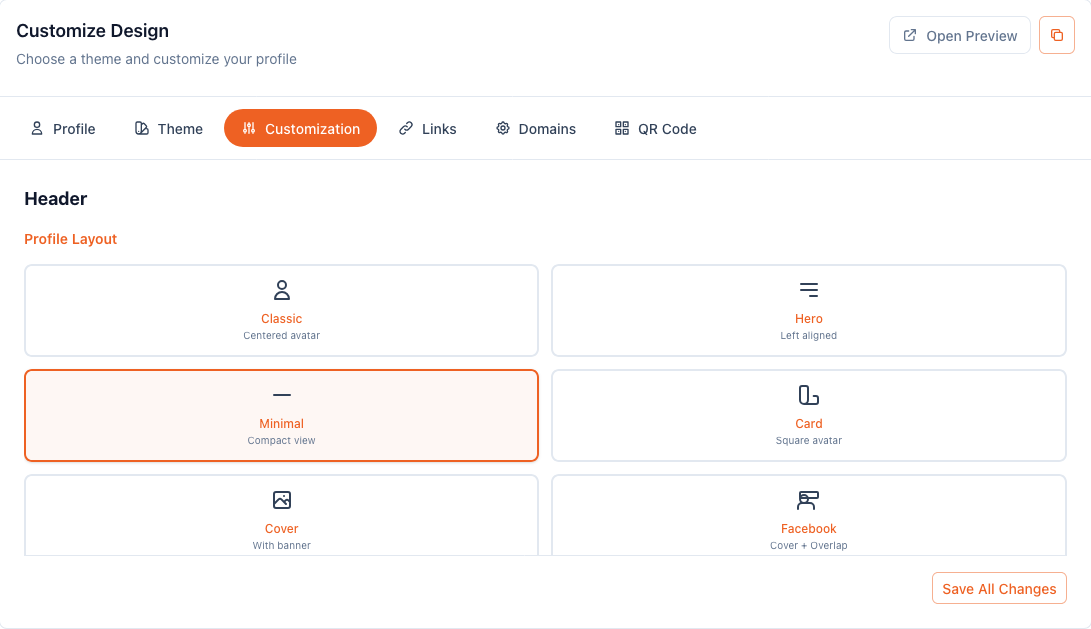
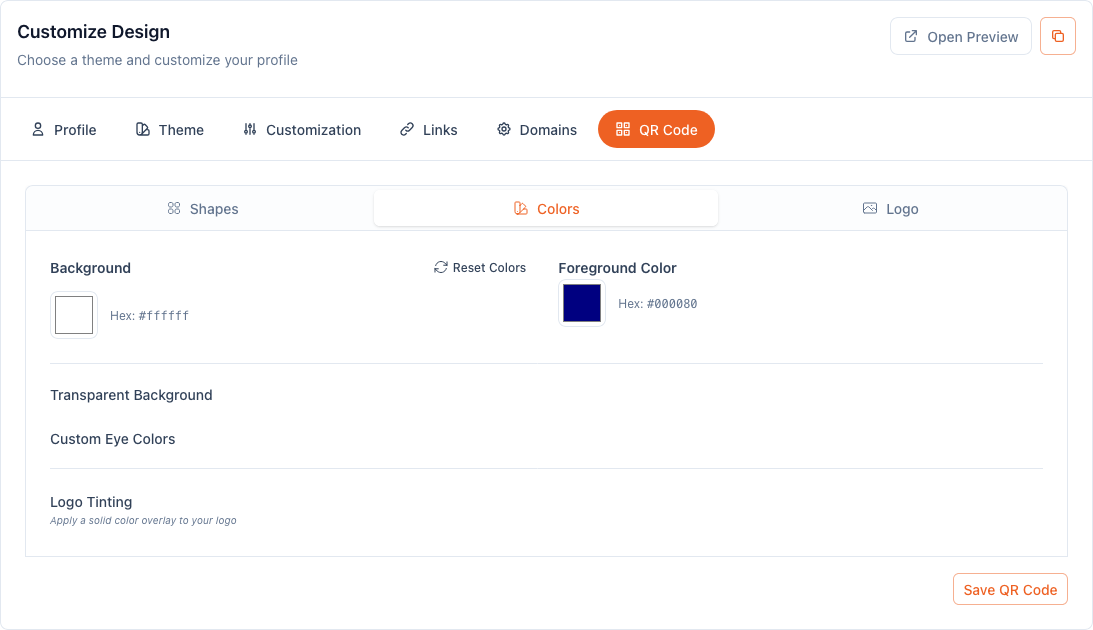
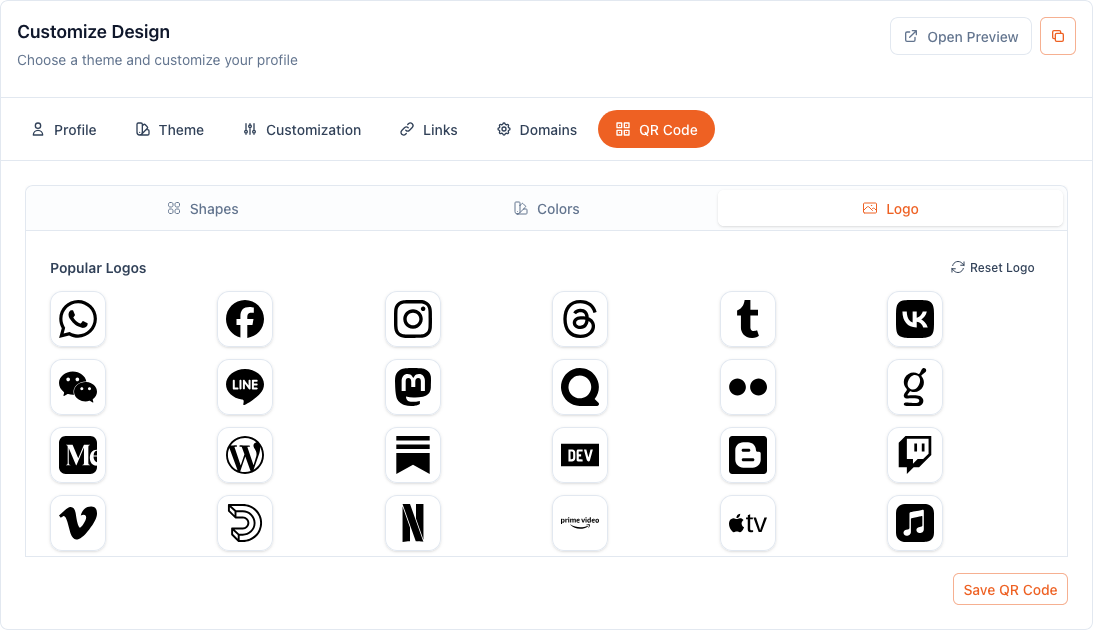
Customize QR Code
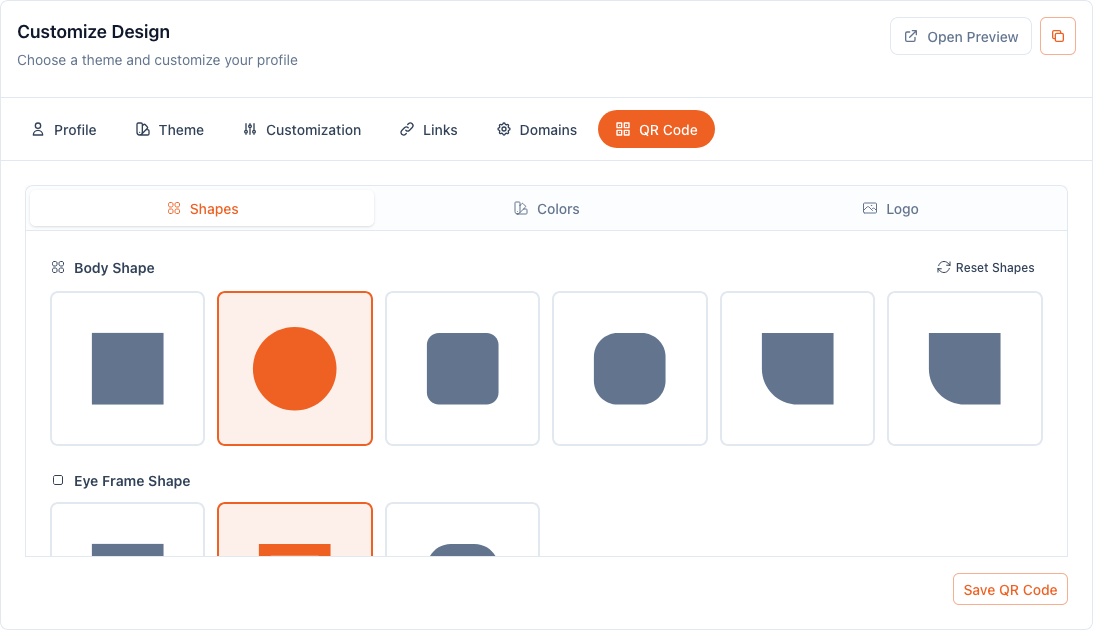
- Open the QR Code section.
- Choose the QR styling options supported by the editor.
- Save the QR config.
The QR configuration is stored on the LinkFolio profile as qrCodeConfig. QR customization also requires the advanced edit capability.
Toggle Public Status
- Open the profile settings.
- Toggle the profile status.
- Save the change.
If the profile is inactive, the public API rejects access with a LinkFolio-not-active response. This affects both the default @username route and branded-domain root rendering.
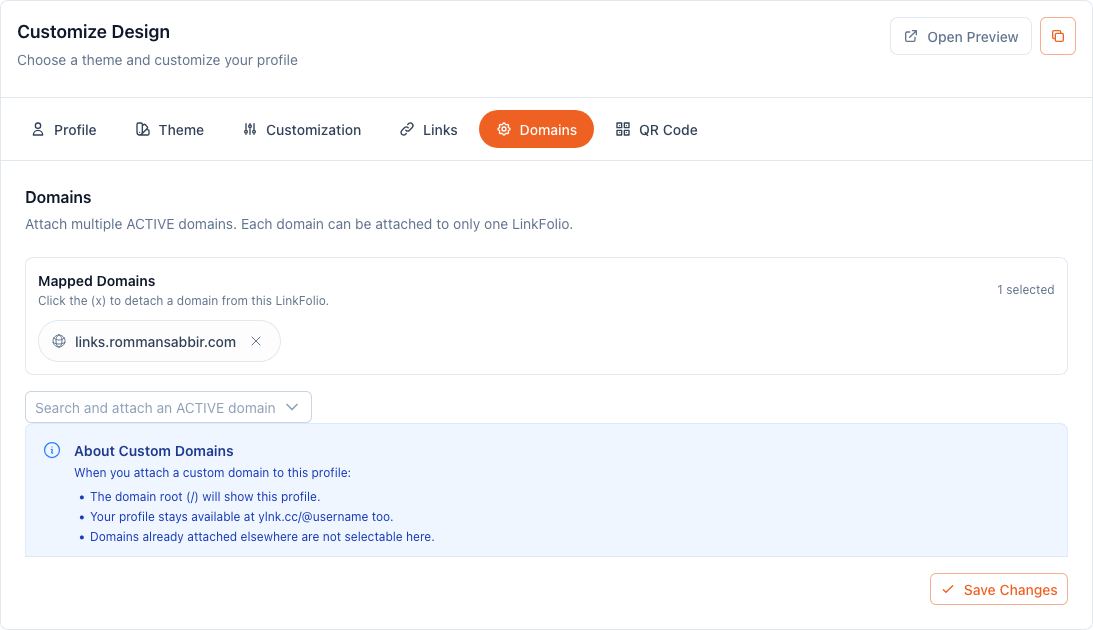
Attach A Branded Domain
- Register and verify the custom domain from
App > Domains. - Confirm the domain status is
ACTIVE. - Navigate:
App > LinkFolio. - Open the profile settings.
- Attach the active domain to the profile.
- Test the domain root in a new browser tab.
Example:
https://links.yourbrand.com/
Domain root behavior:
- yLnk resolves the request host to an active custom domain.
- If the domain is mapped to LinkFolio, the backend finds the profile.
- Nginx uses the internal
X-Accel-Redirecttarget for/@username. - The browser URL remains the branded domain root.
Set A Canonical Domain
If multiple active domains point to the same LinkFolio, mark one domain as canonical.
When a non-canonical domain receives a root request, yLnk redirects it permanently to the canonical host while preserving the path and query string.
Verify The Public Profile
✅ Check these URLs after editing:
https://ylnk.cc/@yournamehttps://links.yourbrand.com/if a branded domain is attachedhttps://links.yourbrand.com/sitemap.xmlhttps://links.yourbrand.com/robots.txt
Use the isFromEditPage=true preview flag only for editor previews. Public visits without that flag are logged for analytics.
Common Issues
Username Is Already Taken
Usernames are globally unique. Choose another username or update the existing profile instead.
Profile Does Not Render Publicly
Check whether the profile is active. Inactive profiles are blocked from the public endpoint.
Cannot Add A Link
The short link must exist and the profile cannot exceed 50 links. Adding the same short link twice is rejected.
Links Reorder Unexpectedly
If autoArrangeSocialMedia is enabled, social media links are moved before other links. Disable auto-arrangement if you want exact manual order.
Theme Update Fails
Theme and design changes require the LinkFolio advanced edit capability. Upgrade the plan or use the basic profile and link controls.
Custom Domain Shows 404
The domain must be ACTIVE and attached to the LinkFolio. Also confirm the profile is active. A domain attached to yShop cannot be attached to LinkFolio at the same time.
Domain Redirects To Another Host
That usually means the current domain is not canonical. Check which active domain is marked canonical for the same LinkFolio.
Images Do Not Update Immediately
Image inputs are processed by storage. If you replaced an image and still see the old one, check browser or CDN cache and verify the editor sent a new image rather than a keep-existing marker.
FAQs
Can I Have Multiple LinkFolio Profiles
Yes, subject to account and organization permissions and any plan quota enforced when creating profiles.
Can One LinkFolio Have Multiple Domains
Yes. Multiple active domains can point to the same LinkFolio, but only one should be canonical.
Can One Domain Point To LinkFolio And yShop
No. A domain root can be attached to either LinkFolio or yShop, not both.
Does Editing Links Break Analytics
Editing the LinkFolio link list does not erase historical visit logs. Public profile visits are logged separately from short-link redirects.
What Happens To Public Visits
Public profile requests log visit data unless the request is marked as an editor preview with isFromEditPage=true. The visit log can include IP-derived geo, user agent data, referrer, and UTM fields.
Does LinkFolio Support SEO Files
Yes. Custom domains use host-aware robots.txt and sitemap.xml. If the domain is mapped to LinkFolio, the default sitemap can include both the domain root and the explicit @username URL.
Security Notes
🔒 Private editing endpoints require authentication and profile ownership or organization access. Public profile access only returns active profiles.
Custom-domain root rendering is domain-masked through Nginx internal routing. The public browser URL remains the branded domain, while the internal renderer receives the @username route.
Analytics and Tracking
LinkFolio public profile views are logged through the LinkFolio visit-log service. The public endpoint accepts UTM fields:
utmSourceutmMediumutmCampaign
Visit logging is best-effort. If logging fails, the public profile response still returns.
Limits by Plan
The implementation enforces plan quota when creating a LinkFolio profile and checks linkFolio.advanceEdit before advanced theme, design, and QR actions.
Link limits:
- Maximum 50 links per profile.
- LinkFolio links must reference existing yLnk short links.